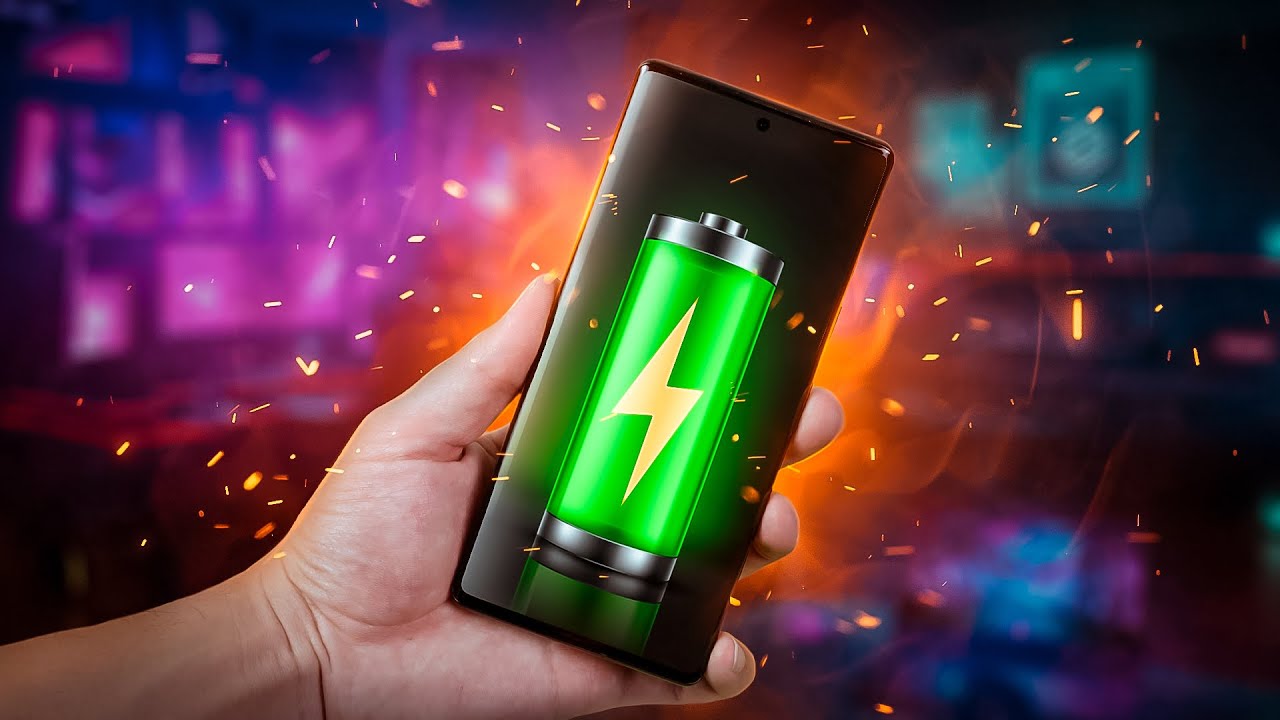

Modern Android phones (running Android 15, Android 16, or similar in 2026) have excellent built-in tools for battery management, but many power-hungry features still run by default. With a few targeted adjustments, you can often add several hours of screen-on time per day without severely impacting usability.
Here are the most effective, up-to-date ways to increase your Android phone’s battery life, combining quick wins, deeper optimizations, and habits for long-term battery health.
1. Master Your Display Settings (Biggest Battery Saver)
The screen remains the #1 power consumer on almost every phone.
- Lower brightness — Use adaptive/auto brightness (Settings → Display → Adaptive brightness / Brightness level). Manually keep it around 30–50% indoors.
- Shorten screen timeout — Set sleep/timeout to 15–30 seconds (Settings → Display → Screen timeout).
- Reduce refresh rate — Switch from 120Hz to 60Hz or use adaptive refresh when possible (Settings → Display → Smooth Display / Motion smoothness / Refresh rate). This helps a lot on travel days or low-battery situations.
- Disable or limit Always-On Display (AOD) — Turn it off completely or set it to tap-to-show (Settings → Display → Lock screen → Always On Display on Pixel; or Lock screen and AOD on Samsung).
Many users report 1–3 extra hours of screen time just from these display tweaks.
2. Enable Adaptive Battery and Battery Saver Features
Android’s intelligent power management has improved significantly.
- Go to Settings → Battery → Adaptive preferences (or Battery → Adaptive Battery) and ensure Adaptive Battery is turned on. It learns your habits over ~7 days and aggressively restricts background activity for rarely used apps.
- Turn on Battery Saver manually when needed, or schedule it (e.g., below 20–30%). It reduces performance slightly, limits background sync, lowers brightness, and turns on dark mode.
- On some devices (especially Google Pixel), enable Extreme Battery Saver for critical low-battery moments—it pauses most apps and notifications except chosen ones.
3. Switch to Dark Mode (Especially on OLED/AMOLED Screens)
Dark mode turns off black pixels on OLED displays (most flagship phones), saving noticeable power in apps and system UI.
- Enable system-wide: Settings → Display → Dark theme (or Dark mode).
- Set it to automatic (follows wallpaper/system) or always on. Bonus: Many apps (YouTube, Reddit, Chrome, etc.) respect system dark mode and save extra power.
4. Control Location, Connectivity, and Background Activity
- Location — Use “While using the app” instead of “Always” for most apps (Settings → Location → App location permissions).
- Turn off Bluetooth, Wi-Fi scanning, and NFC when not needed (Quick Settings tiles or Settings → Connected devices / Network & internet).
- Mobile data / Wi-Fi — Prefer Wi-Fi whenever possible; disable mobile data when on strong Wi-Fi.
- Restrict background usage for power-hungry apps: Settings → Battery → Battery usage → tap an app → select “Optimized” or “Restricted” (not “Unrestricted” unless needed, like for messaging apps).
5. Manage Notifications and Vibration/Haptics
Frequent notifications wake the screen and use data.
- Reduce push notifications — Go to Settings → Notifications and turn off unnecessary ones.
- Disable vibration and haptic feedback for keyboard, calls, etc. (Settings → Sound & vibration → preferences).
- Turn off “Wake screen for notifications” or lock-screen wake-ups when possible.
6. Keep Software and Apps Updated — But Restart After Major Updates
Regular updates often include battery optimizations.
- Update Android and Play System Update (Settings → System → System update).
- Update all apps via Play Store. After big updates (e.g., Android 16 or One UI upgrades), many users experience temporary drain. Restart the phone, clear cache partition if available, and give it 2–3 days to re-optimize.
7. Habits for Long-Term Battery Health (2026 Perspective)
Modern advice focuses on preserving capacity over years, not just daily runtime.
- Keep charge between 20–80% most of the time — Avoid full 0–100% cycles daily. Many 2025–2026 phones have built-in Optimized / Adaptive Charging or 80% limit options (Settings → Battery → Charging).
- Avoid heat — Don’t charge in hot cars or while gaming heavily.
- Restart phone weekly — Clears memory leaks and temporary drain.
- If battery health drops significantly (<80% capacity after 1–2 years), consider professional replacement instead of buying a new phone.
Quick Checklist for Immediate Gains
- Turn off AOD
- Enable Adaptive Battery + Dark mode
- Set 60Hz + short screen timeout
- Lower brightness / enable adaptive
- Restrict 3–5 most draining apps
- Turn on Battery Saver below 30%
Apply the first 3–4 items today—you’ll likely see the biggest improvement within 24 hours. Track progress in Settings → Battery to see exactly which changes help most on your device.
Your mileage varies by model (Pixel vs. Samsung vs. others), usage, and age of the phone, but these steps work universally across Android in 2026.