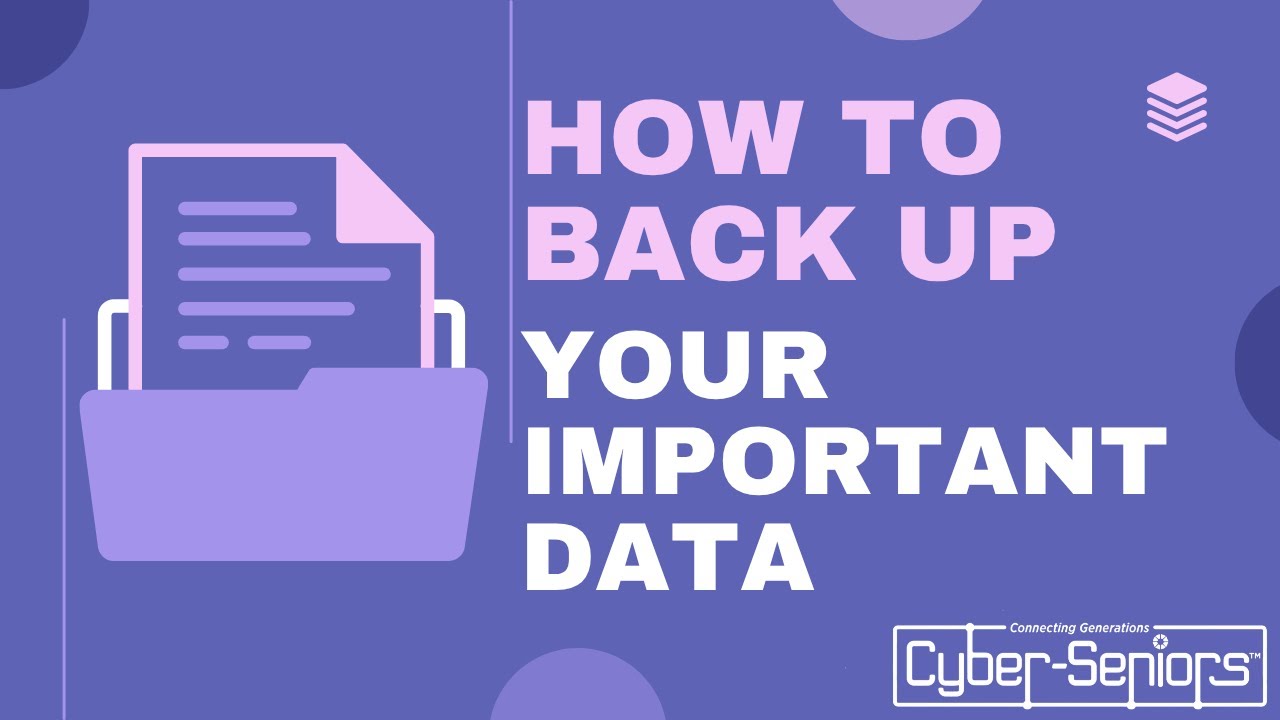

In an era of rising ransomware attacks, accidental deletions, hardware failures, and natural disasters, safely backing up data online has become essential for both individuals and businesses. Online (cloud) backups provide convenient offsite protection, but only when implemented with strong security measures.
This guide explains how to back up your data safely online in 2026, focusing on proven strategies, security priorities, and practical steps.
Why Online Backups Matter — and Why “Safe” Is Non-Negotiable
Local backups (external drives, NAS) are excellent but vulnerable to theft, fire, or ransomware that spreads across your network. Online backups add true offsite redundancy.
However, many cloud services have been breached or subpoenaed, and some scan user files. True safety requires:
- Strong encryption (preferably user-controlled / zero-knowledge)
- Protection against ransomware (immutability)
- Reliable providers with good track records
Core Principle: Follow the Modern 3-2-1-1-0 Backup Rule
The classic 3-2-1 rule has evolved due to ransomware threats. The updated version widely recommended in 2025–2026 is:
- 3 copies of your data (original + 2 backups)
- 2 different types of media/storage (e.g., SSD + cloud)
- 1 copy offsite (the cloud fulfills this)
- 1 copy immutable or air-gapped/offline (cannot be altered/deleted by attackers — many cloud services now offer immutability via object lock / retention policies)
- 0 errors — backups must be regularly tested for successful restore
This strategy protects against hardware failure, human error, theft/fire/flood, and malicious encryption/deletion.
Step-by-Step: How to Set Up Safe Online Backups
- Identify Critical Data Prioritize irreplaceable files: family photos/videos, financial documents, work projects, passwords (from managers), emails, and important documents. Many people back up everything, but start with 100–500 GB of essentials.
- Choose a Secure Cloud Backup Service Focus on services offering private encryption keys (zero-knowledge), strong security, and good restore performance. Popular reliable options in 2026 include:
- IDrive — Frequently top-rated overall; private key encryption option, multiple devices, versioning, reasonable pricing (~5 TB for ~$70–100/year)
- Backblaze — Unlimited storage, simple, private key encryption available, excellent for large photo/video libraries
- Acronis Cyber Protect — Strong security focus, built-in anti-ransomware/immutability features, good for full system images too
- pCloud or Internxt — Zero-knowledge encryption by default (client-side), lifetime plans available, good privacy
- Proton Drive — Excellent privacy (Swiss-based, end-to-end encryption), though more storage-focused than pure backup
- Enable Maximum Security Features
- Use private/zero-knowledge encryption (you hold the key — provider cannot access data)
- Enable two-factor authentication (2FA/MFA) on the account
- Turn on immutable backups / object lock / retention lock if available (prevents deletion for a set period)
- Set strong, unique password (use a password manager)
- Set Up the Backup
- Install the provider’s desktop/mobile app
- Select folders/files (or entire drive for full backups)
- Schedule automatic backups (daily or continuous)
- Choose backup frequency: critical data → continuous/incremental; photos → daily/weekly
- Enable versioning (keep old file versions for 30–180+ days)
- Combine with Local + Immutable Protection
- Keep one local backup (external SSD/HDD or NAS)
- Make one copy immutable (either cloud with lock or offline external drive rotated periodically)
- Example setup: PC (original) → external SSD (local backup) → IDrive/Backblaze (immutable cloud backup)
- Test Restores Regularly The most overlooked step — an untested backup is worthless.
- Every 3–6 months: restore sample files/folders
- Once a year: perform full restore test (or large subset)
- Verify you can access old versions after simulated deletion/ransomware
- Additional Security & Best Practices
- Encrypt local backups too (BitLocker/FileVault/VeraCrypt)
- Use separate accounts/credentials for backup service
- Monitor backup status (email alerts for failures)
- Keep software/apps updated
- Consider air-gapped offline backups for ultra-sensitive data
Quick Comparison of Popular Secure Options (2026)
| Service | Zero-Knowledge / Private Key | Immutable Option | Unlimited Storage | Approx. Cost (5–10 TB) | Best For |
|---|---|---|---|---|---|
| IDrive | Yes (optional) | Yes | No | $70–150/year | Most people, multi-device |
| Backblaze | Yes (optional) | Limited | Yes | ~$100–150/year | Large media libraries |
| Acronis | Yes | Strong | No | $50–120/year | Anti-ransomware focus |
| pCloud | Yes (default) | Add-on | Lifetime plans | Lifetime ~$200–600 | Privacy-focused users |
| Proton Drive | Yes (default) | No | No | €48–120/year | Maximum privacy |
Final Thoughts
Safe online backups in 2026 aren’t just about uploading files to “the cloud” — they’re about controlling encryption keys, following 3-2-1-1-0 principles, enabling immutability where possible, and proving restores work.
Start small: pick one trusted service, back up your most important 100 GB today, enable private encryption + 2FA, and schedule a restore test next month. Once that’s reliable, expand coverage.
Your future self — after a drive crash, ransomware hit, or stolen laptop — will thank you. Data loss is preventable; start protecting what matters most.