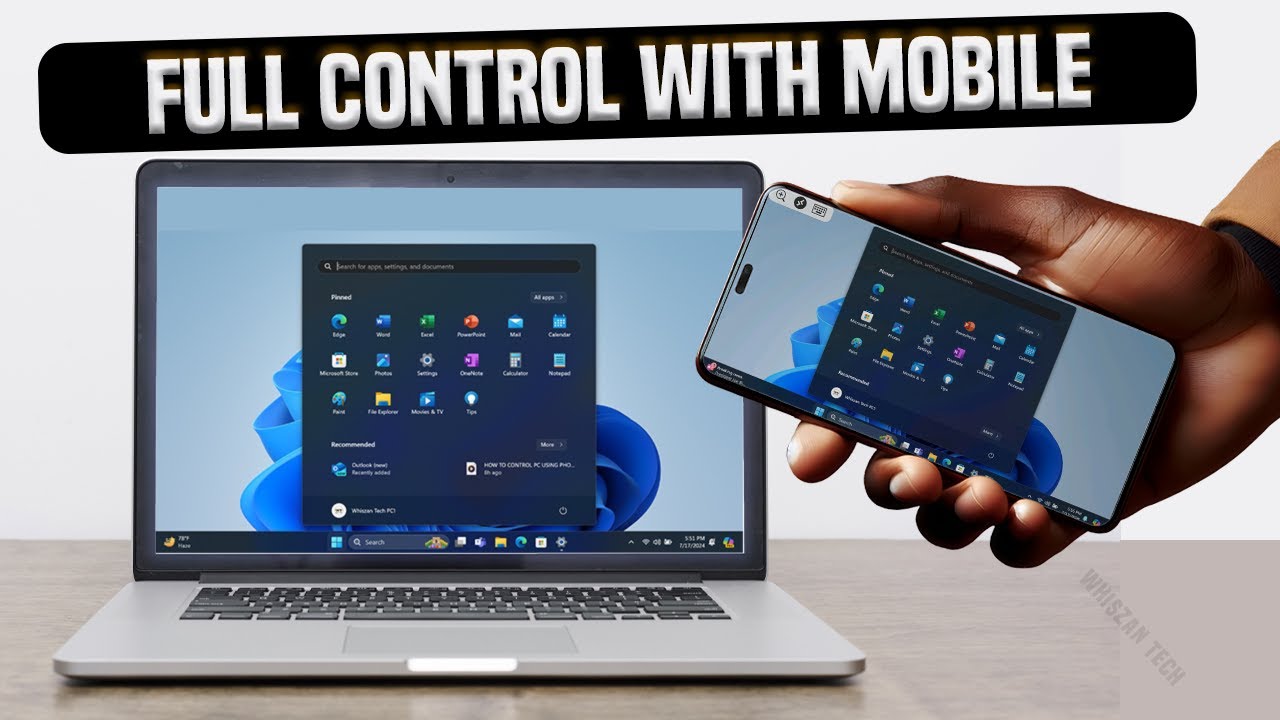

Controlling your laptop from your smartphone has become incredibly straightforward and reliable in 2026. Whether you’re away from home, lounging on the couch, or need quick access to files and apps, remote desktop tools let you view and fully control your laptop’s screen, mouse, and keyboard right from your phone.
This capability works for Windows, macOS, and even some Linux laptops. The best methods depend on your needs: free and simple, high-performance/low-latency, or integrated with your ecosystem (Microsoft for Windows/Android, Google for cross-platform ease).
Here are the most popular and effective ways to set it up, based on current tools and recommendations.
1. Chrome Remote Desktop (Free, Easiest for Most Users)
Google’s solution remains one of the simplest and most reliable free options. It works across Windows, macOS, and Linux laptops, and pairs perfectly with Android or iOS phones.
Steps to set up:
- On your laptop: Open Chrome browser → go to remotedesktop.google.com → sign in with your Google account → download and install the Chrome Remote Desktop extension/host software → set a PIN for access.
- On your smartphone: Download the Chrome Remote Desktop app (free on Google Play or App Store) → sign in with the same Google account → your laptop appears in the list → enter the PIN to connect.
- Once connected, you get full control: move the cursor, type, click, and even transfer files in some cases.
Pros: Completely free, no port forwarding needed, works over the internet from anywhere, simple setup. Cons: Slightly higher latency than paid tools; best on good internet connections. Best for: Casual users, quick access, or anyone already using Google services.
2. Microsoft Remote Desktop (Best for Windows Laptops)
If your laptop runs Windows (especially Windows 10/11 Pro or higher), Microsoft’s built-in Remote Desktop is powerful and free.
Steps to set up:
- On your Windows laptop: Go to Settings > System > Remote Desktop → enable it → note the PC name and make sure your user account has a password.
- For access from outside your home network, ensure port forwarding (3389) or use a VPN/dynamic DNS, or rely on Microsoft account sign-in.
- On your phone: Download the official Microsoft Remote Desktop app (free on Android/iOS).
- Add a new connection using your laptop’s name/IP, Microsoft account, or local credentials → connect and control.
Pros: Native Windows integration, excellent performance on local networks, supports multi-monitor, audio, and printers. Cons: Requires some network setup for remote (internet) access; works best with Windows Pro editions. Best for: Windows users wanting seamless, high-quality control.
3. TeamViewer or AnyDesk (Best Performance & Cross-Platform)
These third-party apps excel in speed, low latency, and features like file transfer, session recording, and unattended access. Both offer free personal use.
TeamViewer (often top-rated for reliability):
- Download and install TeamViewer on your laptop (teamviewer.com).
- Note the ID and password (or set up unattended access).
- On your phone: Install the TeamViewer app → enter the ID/password → connect.
AnyDesk (known for lower latency):
- Similar process: Install on laptop → get address/ID → connect from phone app.
Pros: Very fast even on slower connections, strong security (AES-256/TLS), works on any OS, great for gaming or graphics work. Cons: Free version has occasional commercial-use pop-ups/limits; paid plans unlock more. Best for: Users needing smooth performance or frequent remote sessions.
4. Other Notable Options
- Splashtop — High-speed streaming, great for media or light gaming; free personal tier available.
- Phone Link (Windows + Android only) — For nearby control: lock PC, transfer files, share clipboard, mirror phone to PC (but limited full desktop control compared to true remote desktop).
- VNC-based apps (e.g., RealVNC Viewer) — Good for advanced users but usually require more setup.
Quick Comparison Table (2026 Landscape)
| Method | Cost (Personal) | Latency/Performance | Setup Difficulty | Best OS Pairing | Standout Feature |
|---|---|---|---|---|---|
| Chrome Remote Desktop | Free | Good | Very Easy | Any laptop + Android/iOS | Google account simplicity |
| Microsoft Remote Desktop | Free | Excellent (local) | Medium | Windows + Android/iOS | Native Windows features |
| TeamViewer | Free/Paid | Very Good | Easy | Any | Robust unattended access |
| AnyDesk | Free/Paid | Excellent | Easy | Any | Lowest latency |
Tips for Best Experience
- Use a strong Wi-Fi or mobile data connection — 5G/strong Wi-Fi makes a huge difference.
- Enable “unattended access” so you don’t need someone at the laptop to approve connections.
- For security: always use strong PINs/passwords, enable 2FA where available, and only connect over trusted networks.
- If your laptop sleeps or shuts down, look into Wake-on-LAN apps to power it on remotely (works with some tools like TeamViewer + WoL setup).
- Test locally first (same Wi-Fi) before relying on it remotely.
With these methods, your smartphone becomes a powerful remote for your laptop — perfect for grabbing a forgotten file, checking downloads, or even light work from bed. Start with Chrome Remote Desktop if you want zero hassle, or TeamViewer/AnyDesk if performance matters most.
Which method sounds best for your setup?